
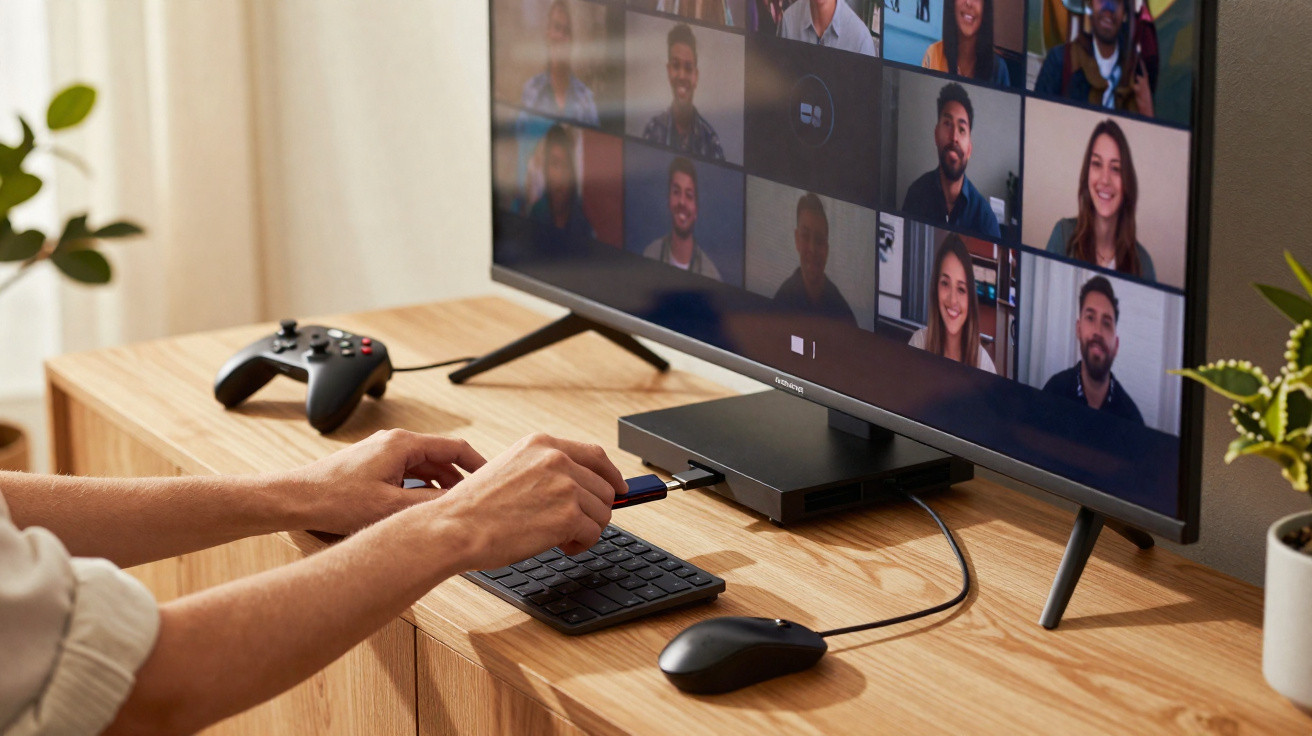
Most people connect every device through HDMI and ignore the other sockets, but a modest USB port can transform an ordinary living-room TV into a compact media centre, gaming setup and backup drive - provided you know how to use it.
Increase storage and record live TV
Even costly modern televisions often come with unexpectedly limited built-in storage. After installing several streaming apps and downloading system updates, the available capacity can disappear quickly.
A USB port provides a useful way to expand that capacity. Connect a high-speed USB stick or external hard drive, and the television can use the additional room for media files and recordings.
Using a USB drive lets your TV record live broadcasts and save shows without touching its internal memory.
For many smart TVs, setup is simple. Insert the USB drive, wait for the television to identify it, and it may ask to format the drive for recording. Although this normally ties the drive to that particular TV, it also prepares it for reliable scheduled recordings and smooth playback.
What USB recording lets you do
- Pause and rewind live television while watching a programme or football match
- Set recordings for late-night films or series
- Save several episodes to watch over the weekend
- Leave the TV’s internal storage available for apps and system updates
Broadcasting rights mean recording is not available for every channel or in every region, while certain televisions support only particular USB drives. It is worth checking the TV menu and manual: look for a “PVR”, “USB recording” or “Time shift” setting, which will usually list the requirements.
Use your TV as a workstation or games console
Storage is not the USB port’s only purpose. It can also connect peripherals, including keyboards, mice and game controllers, making a passive display considerably more interactive.
Plugging in a USB keyboard or controller can make your TV feel closer to a small computer or dedicated console.
Using a keyboard and mouse with your TV
Entering a Wi-Fi password or searching Netflix with a remote control can be tiresome. A wired or wireless USB keyboard removes that inconvenience straight away. Many keyboards using a small USB dongle operate much as they do with a PC: plug in the receiver and the TV detects it.
Adding a mouse or trackpad also makes browsing on a television much less awkward. You can scroll through websites, select links accurately and compose emails from the sofa. People using cloud documents, office suites or remote-desktop apps on a smart TV can create a basic yet practical workstation.
Gaming with a USB controller
For gamers, the USB port offers far more than mobile-style tap games. With a compatible gamepad connected, the TV can support:
- Cloud gaming services including GeForce Now and Xbox Cloud Gaming
- Games streamed from a PC connected to the same network
- Retro gaming via emulators offered by some app stores
Performance relies greatly on the internet connection and the TV hardware’s capabilities. Still, for occasional gaming or nostalgic play, the experience can feel remarkably similar to having a dedicated console, without another box beneath the television.
Display photos and personal videos on the big screen
People often move holiday pictures to a laptop to share them with relatives, despite having the home’s biggest display in the living room. With a USB port, that extra step is unnecessary.
Slip a USB stick with your photos and clips into the TV, and your living room becomes an instant cinema for memories.
Most smart TVs have an integrated media player that detects photo and video files on an attached USB drive automatically. The process is generally straightforward: select the source, open a folder and start the slideshow.
This works especially well at gatherings, whether for a wedding reception, birthday party or a relaxed evening revisiting travel memories. Certain TV models provide slideshow settings with background music and transitions, turning ordinary JPEGs into an experience that feels more carefully presented.
File formats and compatibility
Every file type is not necessarily supported. Most televisions commonly handle the following:
| Content type | Common supported formats |
|---|---|
| Photos | JPEG, PNG, sometimes HEIF |
| Videos | MP4, MKV, AVI, MOV (varies by brand) |
| Music | MP3, AAC, sometimes FLAC |
When a video will not play, the problem is frequently the codec instead of the file extension. Converting the file on a computer before copying it to the USB drive will usually fix the issue.
Add capacity for apps and streaming services
A further smart-TV annoyance is seeing a “storage full” message just as you want to install a new streaming app or game. Some devices include only 8 or 16 GB of storage, with the operating system already using part of it.
Some television operating systems - notably Android TV and Google TV - let an external USB drive function as “adopted” or extended storage. After configuration, the television can transfer certain apps and data to the drive, releasing internal space.
USB storage can give your TV a second life when you run out of space for new apps and services.
That added capacity is particularly helpful for those who use numerous streaming platforms, specialist sports services or bigger games. Rather than removing an app whenever you want to try another one, you can retain a wider choice on the home screen.
Selecting the right USB drive for your TV
USB devices do not all perform alike. An inexpensive, slow USB stick may result in jerky video and sluggish menus, particularly when it is used for extended storage or recording video.
- Choose USB 3.0 or quicker, even where the TV has only USB 2.0 ports
- Select a trusted brand to lower the chance of data corruption
- For recordings, a compact external SSD provides speed and quiet operation
- For photos and occasional use, a mid-range USB stick will generally suffice
When the TV requests it, always use its own formatting tool. This makes sure the file system is compatible with the television and often verifies that the drive meets minimum speed standards.
Practical advice, risks and everyday scenarios
Using a USB port involves several compromises worth knowing about. If a TV formats a drive for app storage or recording, a computer might no longer be able to read that drive. Its contents are often encrypted, both to comply with broadcast rules and to stop protected programmes being copied.
For that reason, keep a separate USB stick for personal files that you need to transfer between televisions, laptops and consoles. Combining different purposes on one drive can often cause accidental data loss or disappointment.
Heat is another consideration. A mechanical hard drive connected to a television for many hours in a TV cabinet may become warm. A small USB flash drive or SSD makes less noise and is generally better suited to ongoing use.
Consider three typical situations. A young couple uses an external SSD with their living-room TV chiefly for cloud gaming and recording football matches. A family stores neatly organised photo folders on a simple 64 GB USB stick, ready for birthdays or Christmas get-togethers. In a small flat, a student makes their TV into a simple office, using the USB port for a wireless keyboard-and-mouse dongle while working in a browser-based document suite.
Each arrangement depends on the same small connector at the back of the television. What changes is its role: storage, an input for peripherals or a route for personal media. Once you see the USB port as a versatile tool instead of an unused extra, the TV becomes more than a screen and starts operating much like a straightforward but capable computer.






Comments
No comments yet. Be the first to comment!
Leave a Comment