
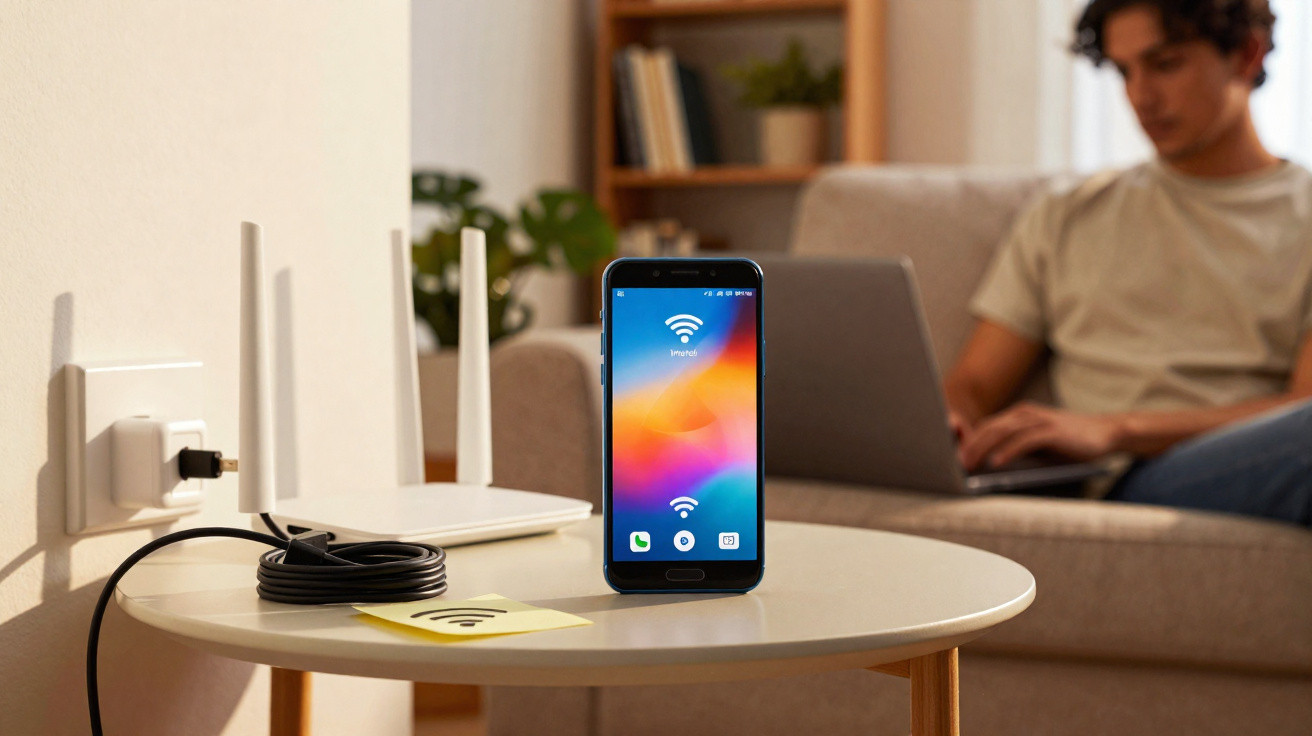
Rather than buying an expensive repeater straight away, you can put an old Android smartphone to surprisingly effective use as a compact Wi-Fi booster. A few settings, the right location and a little fine-tuning can extend your home network’s coverage without spending anything extra.
Why home Wi-Fi so often struggles
Today’s routers transmit more powerfully than they once did, yet many flats and houses still have Wi-Fi dead spots. There are several possible reasons:
- thick concrete or brick walls between the router and the device
- several floors or long corridors
- interference from microwave ovens, baby monitors, wireless sockets and Bluetooth speakers
- a poorly positioned router, such as one placed in a corner, cupboard or behind the television
In these areas, the connection is often slow, unreliable or lost altogether. The usual answer is a Wi-Fi repeater or mesh kit, which can easily cost between €30 and €200. Before spending that money, it is worth looking at the long-forgotten Android phone in your bedside drawer.
How an Android smartphone works as a Wi-Fi repeater
A conventional repeater receives the router’s signal, amplifies it and transmits it onwards. An Android smartphone can achieve something similar, using its mobile hotspot as an intermediate step.
The old phone connects to the router over Wi-Fi and then shares that internet connection again through its mobile hotspot, acting like a small relay station.
Strictly speaking, this is not a true professional-grade repeater, but in everyday use the approach is often enough to give a room or a corner of the flat much better coverage.
Requirements: when this approach is worthwhile
For this method to work, a few conditions should be met:
- an Android smartphone or tablet with a “Mobile hotspot” or “Tethering” feature
- the device must be able to stay connected to Wi-Fi, ideally without a SIM card or with mobile data switched off
- a battery that is still reasonably healthy, or the option to keep the device permanently connected to a charger
- an Android version that is not too outdated; from around Android 8, operation is generally more stable
Devices from the past five to eight years are particularly suitable, even if they are now too slow for everyday smartphone use.
Step by step: turn Android into a Wi-Fi booster
1. Prepare the old device
Before starting, give the phone a thorough tidy-up:
- reset it to factory settings if you no longer need any data on it
- disable or uninstall apps that use data in the background
- extend the screen timeout or set it to “never turn off” if it will remain connected to power permanently
- turn the display brightness down significantly to save energy
This helps the device run cooler and more reliably over long periods.
2. Connect it to your home Wi-Fi
Connect the old smartphone to your router’s Wi-Fi network as normal:
- select your home network in the Wi-Fi settings
- enter the password and test the connection
- make sure the connection remains reasonably stable at the intended location
This step is crucial: if the phone cannot receive a usable signal from the router, it cannot pass on a worthwhile connection.
3. Enable the mobile hotspot
Next, set up the mobile hotspot that will create the extended coverage area:
- open Settings
- choose “Connections”, “Network & Internet” or a similar menu
- open “Hotspot & tethering” or “Mobile hotspot”
- switch on the hotspot
- set a network name and password
Many devices offer settings such as:
- Hotspot name: You can use the same name as your home Wi-Fi or choose a different one, such as “Office Wi-Fi”
- Security standard: WPA3 where possible, otherwise WPA2
- Band: 2.4 GHz is often sufficient because it travels through walls more effectively; 5 GHz is faster but more sensitive
A separate hotspot name makes the booster area easy to identify, which is especially useful when several networks are transmitting in the house.
4. Choose the location carefully
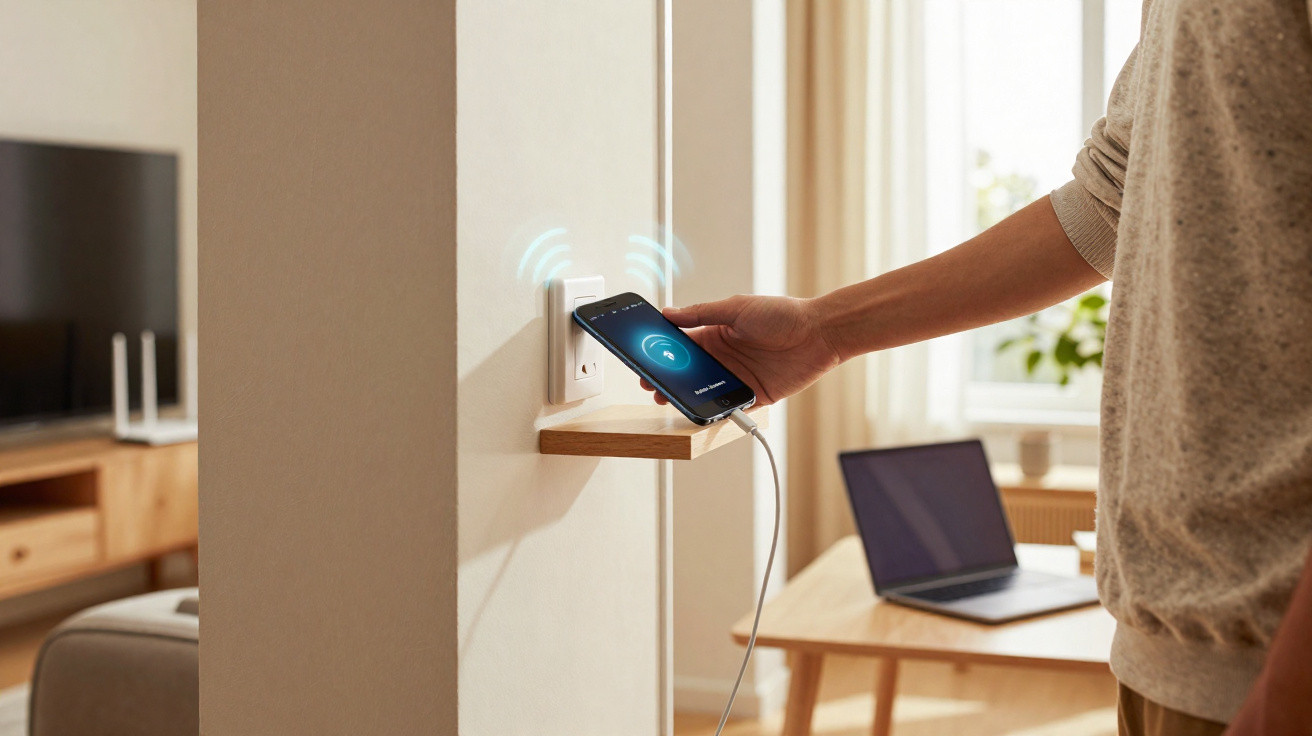
This is the most important part: positioning. Place the old phone roughly halfway between the router and the dead spot, where it can still receive a decent signal.
Suitable locations include:
- on a shelf in the corridor
- on a cupboard close to the door of the problem room
- on the stairs between two floors
Avoid closed cupboards, space beneath a bed, positions directly beside large radiators or spots behind a large television. The phone needs a little “line of sight”, even where walls lie in between.
5. Ensure reliable continuous operation
As a mini repeater, the device should ideally run for several hours or even days at a time. To make this possible:
- connect a charger and ensure the cable is secure, with no loose connection
- set the charging limit to 80 or 90 per cent, if available, to protect the battery
- configure any power-saving modes so that they do not automatically disable the hotspot
Many Android interfaces include an option to disconnect the hotspot after a set period without users. Disable this feature if the device is genuinely intended to serve as a repeater.
Where this solution shines - and where it does not
The Android smartphone trick is not a replacement for a professional mesh system, but it can make a noticeable difference in many everyday situations. Typical uses include:
- a home-working desk in the furthest corner of a room
- a child’s bedroom where Wi-Fi coverage has previously been weak
- a balcony or terrace just beyond the router’s normal range
It does not work without drawbacks. Data has to travel from the end device through the hotspot to the router and back again. This slightly increases latency and reduces the maximum speed somewhat.
| Advantages | Disadvantages |
|---|---|
| no additional cost | lower maximum speed than with a high-quality repeater |
| gives an old device a new purpose | continuous operation may warm up the phone |
| can be moved flexibly as needed | slightly higher electricity use from permanent charging |
Security: protecting your improvised extra network
As real data passes through the hotspot, security matters. A few settings are enough to keep the risk low:
- use a strong, unique password for the hotspot
- choose an inconspicuous SSID, or network name, and avoid real names
- turn off the hotspot when it will not be needed for a longer period
- allow access only to trusted devices
With a properly configured password and up-to-date encryption, a phone hotspot is about as secure in daily use as a normal repeater.
Alternative uses for old Android devices on a home network
If the repeater approach proves impractical because of the location or does not provide enough performance, the retired smartphone can still be used productively. A few examples:
- Wi-Fi monitor: Suitable apps can measure signal strength throughout the home.
- Streaming client: Use it in a guest room as a Spotify or podcast player connected to a speaker.
- Smart home display: Turn it into a control centre for lights, heating or camera feeds.
Anyone who enjoys tinkering can fix the phone into a permanent holder, route the cable neatly and make it look almost like a fully fledged network component.
When a proper Wi-Fi repeater is still worthwhile
In very large flats, blocks of flats with heavy wireless traffic, or houses with several floors, the phone-based solution reaches its limits. Some routers work with dedicated mesh repeaters that allow seamless roaming, meaning devices can switch between access points without the connection dropping.
If you regularly take part in video calls, transfer large files across the home network or need to support several users at once, a dedicated repeater or mesh system is the more relaxed long-term option. The old Android phone can then remain a useful backup, or provide a temporary boost wherever a stronger signal is needed at short notice, such as during a barbecue on the terrace.
The key point is that a few simple steps and hardware you already own can often get more from your Wi-Fi than many people expect. Before adding another network booster to the basket, a quick test with the old smartphone from the drawer can provide plenty of clarity - and, in the best case, protect your budget.





Comments
No comments yet. Be the first to comment!
Leave a Comment